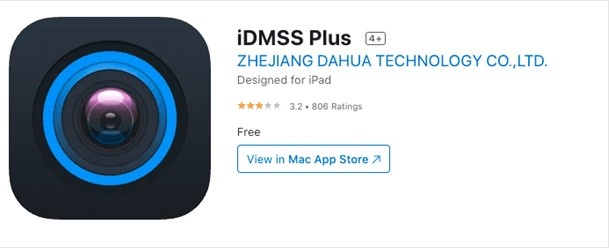
How to Download the Lastest Version of iDMSS Plus App?
In the world of modern surveillance, mobile applications have become essential tools for monitoring security cameras remotely. One such popular app is iDMSS Plus, designed specifically for iOS users who wish to manage and monitor their Dahua security cameras from anywhere. Whether you're a homeowner or business owner, iDMSS Plus offers a seamless way to stay connected to your surveillance systems on the go. This guide will provide a step-by-step explanation on how to download, install, and use iDMSS Plus effectively, ensuring you get the most out of your security setup.
What is iDMSS Plus?
iDMSS Plus is a mobile surveillance app developed by Dahua Technology, one of the leading companies in the video surveillance industry. It allows users to view live feeds, playback recorded footage, receive push notifications for motion detection, and control PTZ (Pan-Tilt-Zoom) cameras—all from an iOS device like an iPhone or iPad. The app is packed with features that provide flexibility, ease of use, and reliability for monitoring your security system.
Key Features of iDMSS Plus
Live Video Streaming:
View live video feeds from your connected cameras in real-time with high-definition clarity.
Playback and Recording:
Access recorded footage stored on the camera’s NVR (Network Video Recorder) or SD card to review past events.
Push Notifications and Alerts:
Receive instant alerts when the system detects motion or other pre-configured events, ensuring you are always aware of suspicious activity.
PTZ Camera Control:
Easily control PTZ cameras directly from the app, adjusting zoom, pan, and tilt settings for a better view of your surroundings.
Two-Way Audio Communication:
Communicate through compatible cameras using the app’s two-way audio feature for added security.
Cloud Storage Support:
Backup your recordings to the cloud for easy access and enhanced data protection.
Snapshot and Video Saving:
Take snapshots or save video clips directly to your device for quick reference or sharing.
Steps to Download & Install iDMSS Plus App
1. Ensure Compatibility
Before downloading, ensure your device is compatible with the iDMSS Plus app. The app requires an iPhone, iPad, or iPod Touch running iOS 9.0 or later.
2. Download from the App Store
Open the App Store on your iOS device.
In the search bar, type “iDMSS Plus” and tap the search icon.
Locate the app from Dahua Technology and tap the “Get” button to begin downloading.
Authenticate the download using Face ID, Touch ID, or your Apple ID password if prompted.
3. Installation Process
Once the download is complete, the app will automatically install on your device. Tap “Open” to launch the app or find it on your home screen.
How to Set Up iDMSS Plus?
1. Initial Configuration
When you open the app for the first time, you will be prompted to agree to the terms and conditions. After agreeing, follow these steps:
Create a New Account: Register with your email or log in if you already have an account.
Add a Device: Tap the “+” icon to add a new device.
Scan QR Code: Use the camera on your phone to scan the QR code located on your Dahua NVR, DVR, or camera.
Manual Input: Alternatively, manually input the device's serial number, IP address, and port information.
2. Configuring Settings
Once the device is added, you can configure various settings to customize your experience:
Set up Push Notifications: Enable alerts for motion detection or other events.
Stream Quality: Adjust the video resolution for live streaming to save bandwidth if needed.
Recording Schedule: Set recording preferences like continuous recording, motion detection, or scheduled recording.
Using iDMSS Plus for Remote Monitoring
1. Viewing Live Feeds
Tap the “Live View” option from the home screen.
Select the camera(s) you want to view.
Use gestures like pinch-to-zoom to adjust the view.
2. Playback Recorded Footage
Navigate to the “Playback” tab.
Choose the desired camera and date to access recorded videos.
Scroll through the timeline to locate specific events.
3. Control PTZ Cameras
From the live view screen, select your PTZ camera.
Use on-screen controls to pan, tilt, or zoom the camera for a better view.
4. Save Snapshots and Videos
Tap the camera icon to take a snapshot or the video icon to save a video clip to your device’s local storage.
Troubleshooting Common Issues
1. Connection Issues
Ensure your device and cameras are connected to the internet.
Restart your router or modem if the connection is unstable.
Verify that your camera’s firmware is up to date.
2. Push Notifications Not Working
Check that notifications are enabled in both the app and your device’s settings.
Ensure background app refresh is turned on for iDMSS Plus.
3. Video Playback Problems
Ensure that the NVR/DVR has recorded footage for the selected date and time.
Try switching between Wi-Fi and cellular data to see if the issue is network-related.
Security and Privacy Tips
Use Strong Passwords: Ensure your camera system and app accounts have strong, unique passwords.
Enable Two-Factor Authentication: If available, use 2FA for added security.
Keep Firmware Updated: Regularly update the app and your security devices to protect against vulnerabilities.
Conclusion
The iDMSS Plus app is a powerful tool for anyone looking to monitor and manage their Dahua security cameras remotely. With features like live streaming, push notifications, and PTZ control, it offers a robust solution for home and business security. By following this guide, you can easily download, install, and configure iDMSS Plus to ensure your surveillance system is always at your fingertips. Stay secure and in control with iDMSS Plus—your comprehensive security companion for iOS devices.