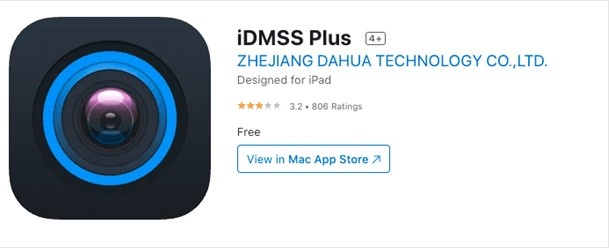
How to Login to iDMSS Plus App?
In an era where security is paramount, the ability to remotely access and monitor surveillance cameras has become a necessity. The iDMSS Plus App, developed by Dahua Technology, provides users with a seamless way to control and monitor their security systems through iOS devices like iPhones and iPads. Whether you're a homeowner keeping an eye on your property or a business owner ensuring workplace safety, logging in to the iDMSS Plus app is the first step toward complete remote monitoring.
In this comprehensive guide, we’ll walk you through how to log in to the iDMSS Plus app, troubleshoot common login issues, and offer valuable security tips to keep your system secure.
What is iDMSS Plus App?
iDMSS Plus is a mobile application designed for iOS users, enabling them to access Dahua surveillance cameras, NVRs (Network Video Recorders), and DVRs (Digital Video Recorders) remotely. The app provides real-time monitoring, playback of recorded footage, and control over PTZ (Pan-Tilt-Zoom) cameras. However, to access these features, users must first log in to the app with their credentials or device information.
Benefits of Logging into iDMSS Plus App
Remote Monitoring: Access live video feeds from anywhere with an internet connection.
Event Notifications: Receive push alerts for motion detection, intrusion, or other pre-configured events.
Access to Playback: Review recorded footage at your convenience.
PTZ Control: Manage the movement of PTZ cameras remotely.
Enhanced Security: Protect your system with secure login credentials.
Step-by-Step Guide to Login to iDMSS Plus App
1. Download and Install the App
Before logging in, ensure that the iDMSS Plus app is installed on your iOS device. Follow these steps:
Open the App Store on your iPhone or iPad.
Search for “iDMSS Plus” in the search bar.
Tap the “Get” button to download the app and authenticate the installation using Face ID, Touch ID, or your Apple ID password.
2. Launch the iDMSS Plus App
Locate the iDMSS Plus app icon on your home screen.
Tap the icon to launch the app.
You’ll be greeted with the app’s home interface or login screen.
3. Choose Your Login Method
The iDMSS Plus app offers multiple login methods based on how your system is configured:
Local Login (Without Cloud Account):
Tap “Device Manager” on the main screen.
Add your device manually by entering the serial number, IP address, and port.
Input your username and password for the device (usually admin credentials).
Tap “Save” to connect the device and access the cameras.
Cloud Account Login (Dahua or DMSS Account):
Tap “Login” on the main screen.
Select “Cloud Login” or “DMSS Account” option.
Enter your registered email address or phone number and password.
Tap “Login” to access your account.
QR Code Login:
Tap “Scan” in the device management section.
Use your device’s camera to scan the QR code on your NVR, DVR, or camera.
Enter the device password and tap “Save” to complete the login process.
4. Completing the Setup
Once logged in, you’ll be directed to the app’s main interface, where you can:
View live camera feeds
Access recorded footage
Receive push notifications for events
Control PTZ cameras (if applicable)
Troubleshooting Common Login Issues
Even though logging in to the iDMSS Plus app is straightforward, users may encounter some common issues. Below are solutions to resolve them:
1. Forgot Password
Symptoms: Unable to log in due to forgotten credentials.
Solution:
Tap “Forgot Password” on the login screen.
Enter your registered email or phone number.
Follow the instructions sent via email or SMS to reset your password.
Ensure you choose a strong password when resetting.
2. Connection Timeout or Network Issues
Symptoms: Login attempt fails due to connection errors.
Solution:
Check your internet connection. Ensure your Wi-Fi or mobile data is active and stable.
Restart your router or modem to refresh the connection.
Try switching between Wi-Fi and mobile data to see if the issue persists.
3. Incorrect Login Credentials
Symptoms: Login fails due to incorrect username or password.
Solution:
Double-check your username and password for typos.
Ensure the Caps Lock is not on if using a complex password.
Reset your password if multiple login attempts fail.
4. Device Not Found or Unable to Add Device
Symptoms: The app cannot detect the device during manual entry or QR code scan.
Solution:
Verify the device is powered on and connected to the network.
Ensure the serial number or IP address is entered correctly.
Make sure the device firmware is up to date.
5. Push Notifications Not Enabled
Symptoms: You’re logged in but not receiving alerts for events like motion detection.
Solution:
Go to Settings on your iPhone or iPad.
Select Notifications and ensure that notifications are enabled for the iDMSS Plus app.
Enable Push Notifications in the app settings under Device Manager.
Best Practices for Secure Login
To ensure the security of your surveillance system, follow these best practices when using the iDMSS Plus app:
Use Strong Passwords: Create a password with a combination of uppercase letters, lowercase letters, numbers, and symbols.
Enable Two-Factor Authentication (2FA): If supported, enable 2FA for an extra layer of security.
Avoid Public Wi-Fi: Use a secure, private network when accessing your surveillance system.
Regularly Update the App: Keep the app and your device’s firmware up to date to ensure security patches are applied.
Log Out When Not in Use: For added security, log out of the app when you’re not actively monitoring your cameras.
Additional Tips for a Smooth Experience
Optimize Network Settings: Ensure your cameras and device are connected to a high-speed internet connection for uninterrupted monitoring.
Backup Settings: Regularly back up your device configurations to the cloud or locally to avoid reconfiguring in case of app reinstallation.
Use the Latest Version: Always update the iDMSS Plus app to the latest version to benefit from new features and bug fixes.
Enable Auto-Login: For convenience, enable auto-login if your device is secure and used only by authorized personnel.
Conclusion
Logging in to the iDMSS Plus app is an essential step in managing and monitoring your Dahua security cameras. Whether you're accessing the app via a cloud account, using local login credentials, or scanning a QR code, the process is designed to be user-friendly and efficient. By following the steps outlined in this guide and applying the troubleshooting tips provided, you’ll ensure a smooth, secure login experience.
With the iDMSS Plus app, you can enjoy peace of mind knowing that your property is under constant watch, no matter where you are. Make sure to follow the security best practices to protect your surveillance system from unauthorized access, ensuring a safe and seamless monitoring experience.